Remapping Keys with the Windows Registry
~11 minI was looking through my old files and found this post, mostly finished, sitting on my hard drive. I decided to finish it up and push it. I'm leaving it with its old date, rather than publishing it as something new. These days, the specific task I was trying to accomplish can be easily done with a button in PowerToys (not sure if that was the case back then or not), but I think the post is still valuable as a peek into some Windows internals. I'll never miss an opportunity to dive into an operating system!
This may seem an odd statement with which to begin an article on keyboard remapping, but I use the vim text editor. Extensively. And this means that I press the Escape key. Extensively.[1]
Now the Escape key is not located at a particularly easy-to-access spot on the keyboard. So I got it in my head to try to fix this problem. What if I took Caps Lock, which I never use and which occupies prime keyboard real estate, and swapped it for Escape? This would save me a lot of hand movement, given how often I need to press that key![2]
My work computer uses Microsoft Windows, so I took to the Internet to figure out how to remap keys there. As it turned out, it's a bit... complicated.
The first option that I tried was AutoHotkey. I wrote a simple script that did the remapping for me, and ran it through Windows Task Scheduler. This worked, a lot of the time. But I found that, even as I tweaked the script and the scheduler settings, I could never get it to work with 100% reliability. Logging on and off, or even just locking and unlocking, would sometimes kill the script, requiring a manual restart. Plus, the whole thing struck me as rather inelegant. There had to be a better way than using a full-blown scripting engine to swap two keys with each other.
There was other software available too that promised to support key remapping by editing the Windows registry. I tried a couple of these and they did work, but the idea of using a dedicated GUI tool just to set a single registry value struck me as overkill. So I spent some time researching how this worked -- and in the process learned a lot about how Windows actually processes keyboard inputs. And here I would like to share all of that with you.
Scan Codes and Virtual-key Codes#
Windows actually provides several APIs for accessing keyboard input in applications. However, they are all built on top of the same basic system.
It all starts with something called a scan code. A scan code is a code sent over the wire from the keyboard to the computer when a key is pressed. Each key has its own code, and these codes can vary from keyboard to keyboard (although all USB keyboards use a unified standard).
Because these scan codes are, in principle, device-specific, there needs to be some translation into a unified format for use by Windows. This is the job of the device driver for a given keyboard. When a key is pressed, that key's scan code is sent down the wire to the computer itself, where it is picked up by the driver. The driver software then translates this scan code into a virtual-key code, which is a standardized code within Windows for a given key. This code is then written to the system message queue, where the application can read it and process it uniformly -- without a worry about the underlying keyboard scan codes.
Scan Code Mapper#
Within the keyboard driver stack, there is an additional processing step before virtual-key translation takes place. The keyboard class driver can apply a custom scan code mapping, translating an input scan code to a different one first. The basic flow is,
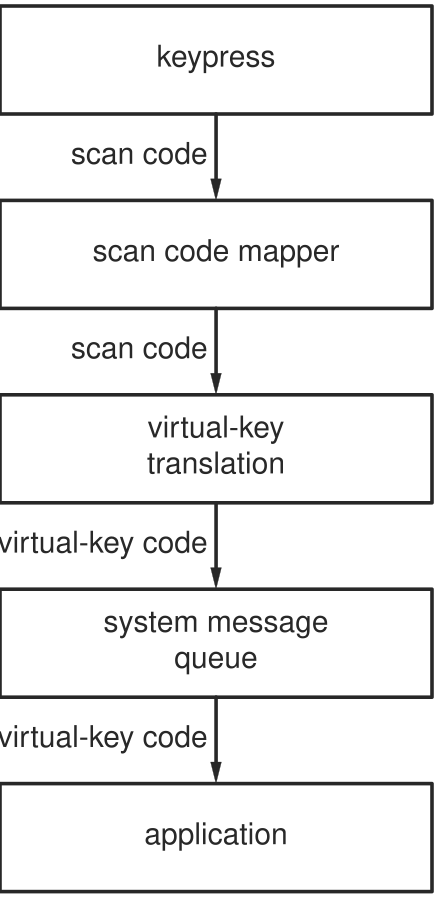
The mapping is stored in the system registry under,
HKEY_LOCAL_MACHINE\SYSTEM\CurrentControlSet\Control\Keyboard Layout
Common Scan Codes#
There are a few different sets of scan codes that keyboards can use. Notably there appear to be the scan codes specified by the USB Human Interface Device (HID) specification, as well as three sets of PS/2 scan codes.
After a fair bit of searching, I was not able to find any positive confirmation on this, but it appears that on Windows, all scan codes get converted to PS/2 Set 1 scan codes prior to going into the Scan Code Mapper. Even though I am using a USB keyboard, these PS/2 Set 1 scan codes have worked for all cases that I have tested. If you happen to know more about how this all works, please send me an email -- I'd be interested in learning more.
Microsoft has a table of scan codes across several of these sets available for download, but for convenience here is a portion of the PS/2 Set 1 table covering the keys most likely to be involved in a remapping. The Scan Code Mapper only uses keydown (make) codes -- the keyup code for the remapped key is derived automatically.
| Key | Keydown Scan Code | Keyup Scan Code |
|---|---|---|
| ENTER | 1C | 9C |
| ESC | 01 | 81 |
| BACKSPACE | 0E | 8E |
| TAB | 0F | 8F |
| SPACE | 39 | B9 |
| CAPSLOCK | 3A | BA |
| LCTRL | 1D | 9D |
| LSHIFT | 2A | AA |
| LALT | 38 | B8 |
| RCTRL | E0 1D | E0 9D |
| RSHIFT | 36 | B6 |
| RALT | E0 38 | E0 B8 |
The Scancode Map Value#
The actual registry value is named Scancode Map and
has type REG_BINARY. Its layout is a simple packed
binary structure,
| Offset | Size | Description |
|---|---|---|
| 0 | 4 bytes | Version (always 00 00 00 00) |
| 4 | 4 bytes | Flags (always 00 00 00 00) |
| 8 | 4 bytes | Entry count (number of mappings + 1 for the null terminator), little-endian |
| 12 | 4 bytes each | Mapping entries (see below) |
| ... | 4 bytes | Null terminator (00 00 00 00) |
Each mapping entry is four bytes, with the first two being the output scan code (the key you want the system to see), and the second two the input scan code (the physical key being pressed). Both are stored little-endian, with a zero high byte for standard single-byte scan codes.
For extended keys (those listed with an E0 prefix
in the table above, such as RCTRL and RALT) the high byte is
E0 rather than 00. To map RCTRL as an
input key, for example, the input field would be 1D E0,
not 00 1D.
A Worked Example#
Let's construct the value for the Caps Lock to Escape remapping.
We need one mapping entry: physical Caps Lock (3A)
should produce Escape (01).
The entry count field is 2, one real mapping plus the null terminator. The full byte sequence is,
00 00 00 00 -- version
00 00 00 00 -- flags
02 00 00 00 -- entry count (1 mapping + null terminator)
01 00 3A 00 -- Escape (01) <-- Caps Lock (3A)
00 00 00 00 -- null terminator
The easiest way to apply this is with a .reg file.
Create a file with the following contents and double-click it to
merge it into the registry,
Windows Registry Editor Version 5.00[HKEY_LOCAL_MACHINE\SYSTEM\CurrentControlSet\Control\Keyboard Layout]"Scancode Map"=hex:00,00,00,00,00,00,00,00,02,00,00,00,01,00,3a,00,00,00,00,00
Alternatively, you can apply it directly from an elevated command
prompt with reg add,
reg add "HKLM\SYSTEM\CurrentControlSet\Control\Keyboard Layout" ^
    /v "Scancode Map" /t REG_BINARY ^
    /d 00000000000000000200000001003a0000000000 /f
Either way, a reboot is required for the change to take effect.
Because the value is under HKLM, this mapping applies
system-wide to all users. It can be undone by simply deleting
the Scancode Map entry from the registry and rebooting.
Adding more remappings is just a matter of appending entries before the null terminator and incrementing the count. For example, to also remap Escape back to Caps Lock (a full swap rather than a one-way redirect), the count becomes 3 and a second entry is added,
Windows Registry Editor Version 5.00[HKEY_LOCAL_MACHINE\SYSTEM\CurrentControlSet\Control\Keyboard Layout]"Scancode Map"=hex:00,00,00,00,00,00,00,00,03,00,00,00,\01,00,3a,00,\3a,00,01,00,\00,00,00,00
Conclusion#
And, that's it! This is a fairly limited and technical approach to remapping keys, but it has the virtue of being simple to execute and not requiring any additional software.
[1] If you aren't familiar with it, vim is a modal text editor. By default you are in command mode. To add text, you enter insert mode and type it in. Then you press Escape to return to command mode. Navigation throughout the document is done in command mode, so there is a lot of flipping back and forth between command and insert mode -- i.e., a lot of pressing of the Escape key. [back]
[2] I am aware that ^[ is also equivalent
to pressing Escape, but I like my solution better. It's still less
hand movement, and a bit faster in my eyes.
[back]